Press the Blue
 + Backlight
  keys, or tap
  (Start) > Suspend.
The Follett Panther™ is a hand-held wireless device. It has a self-contained application, Follett Remote, that allows you to collect barcode scans offline for many circulation, inventory, and collection and patron maintenance tasks.
If you have Destiny and a wireless network, the Panther's customized browser communicates directly with Destiny, allowing you to perform real-time transactions. When you are out of range of your wireless network or when your Destiny server is not available, you can use Follett Remote.
This document guides you through charging and setting up your Panther, and communicating with your workstation or wireless network. It includes the following sections:
Communicating with the Panther
If you've just received your Follett Panther, make certain your package contains everything on the enclosed packing list.
Once you've verified that you have everything you need, you'll first need to charge the batteries.
The Panther has two types of battery power: The main battery pack on the back panel, and the backup battery located inside the Panther.
Both batteries work together to prevent data loss when you use the Panther over long periods of time.
You must charge both batteries to full capacity before using the Panther for the first time.
To insert a battery pack, (1) place the end of the battery without the locking tab into the bottom of the charging pocket and (2) snap the battery into place with a hinging motion.
Important: If you're removing or re-installing a battery pack, make sure the Panther is turned off:
Press the Blue + Backlight keys, or tap (Start) > Suspend.
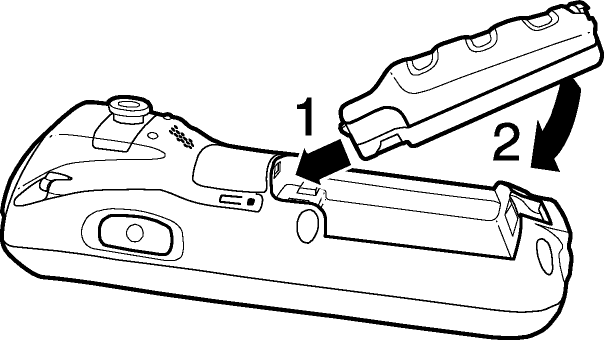
To remove a battery pack, push the locking tab down and pull the battery away from the charging slot with a hinging motion.
The main battery pack requires four hours to charge to full capacity.
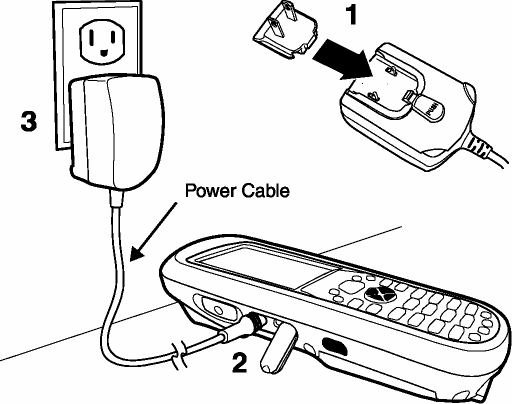
Important: Use only the peripherals, power cables, and power adapters from the manufacturer. Use of peripherals, cables, or power adapters from other manufacturers will void the warranty and may damage the Panther.
Data and files saved on the Follett Panther may be stored in RAM. Make sure to maintain a continuous power supply to the Panther to help prevent data loss. When you remove a battery pack, insert another charged battery pack in the Panther. If the main battery pack is low, either connect the Panther to the Power cable or insert the Panther into a HomeBase. Either action powers the Panther and begins recharging the battery.
Note: If the main battery is low and the Panther is in Suspend mode, pressing the SCAN button does not wake the Panther; you must replace the discharged battery with a fully charged battery.
Located inside the Panther, the backup battery is a 2.4V nickel metal hydride (NiMH) battery.
The internal backup battery prevents the Panther from resetting when you remove the main battery pack. This battery retains RAM data and allows the real-time clock to remain operational for up to 30 minutes.
If the Panther is left without the main battery pack for more than 30 minutes, the internal backup battery discharges and must be recharged to function properly.
Important: Even if the internal backup battery fails, data and programs stored in Flash memory (IPSM) or an optional SD card are not lost.
However, the Panther automatically cold boots when you install a fully charged battery pack. If this happens, you'll need to re-configure your wireless network settings and reset the real-time clock.
The internal backup battery charges off the main battery pack and requires eight hours charge time to back up RAM data for 30 minutes. You can begin using the Panther after charging the main battery for four hours. If you do so, the internal backup battery will continue to charge off the main battery.
To ensure that the internal backup battery functions properly, maintain a consistent power supply for the first eight hours of operation. This power supply can be external power (using a charging peripheral) or an installed, charged battery pack, or a combination of both.
Press the Blue + Backlight keys, or press the  key.
key.
Press the Blue + Backlight keys, or tap  (Start) > Suspend.
Important: Always power off when you change the battery pack.
Take a moment to become familiar with the layout of the keypad and the functions of the various keys.
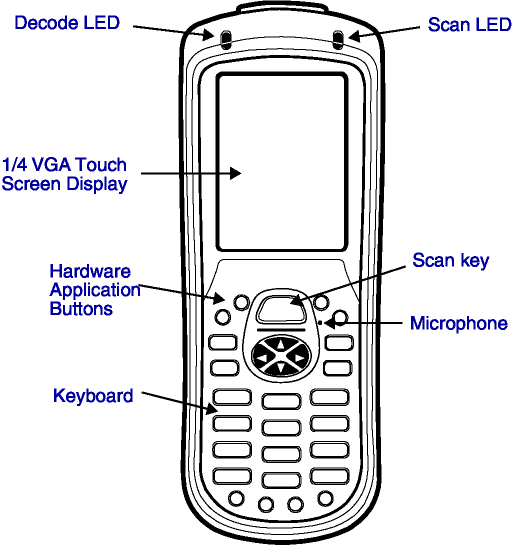
The Scan LED lights red when you press the Scan key when scanning.
The Decode LED lights green when the Panther successfully decodes a barcode scan.
The Panther comes with a stylus, located in the stylus slot on the back of the unit.
Use this stylus (or your finger) to select or enter information on the touch screen.
The stylus functions like a mouse; generally, a tap is the same as a click.
|
Tap |
Tap the touch screen once to open menu items and select options. |
|
Drag |
Hold the stylus on the screen and drag across thescreen to select text and images. |
|
Tap & hold |
Tap and hold the stylus on an item and a pop-up menu appears. On the pop-up menu, tap the action of the task you want to perform. |
Important: Use of objects other than the stylus, such as paper clips, pencils, or ink pens, can damage the touch screen and will void the warranty.
When needed, clean the scanning lens and the LCD display with a clean, non-abrasive, lint-free cloth. You can clean the Panther case with a damp cloth.
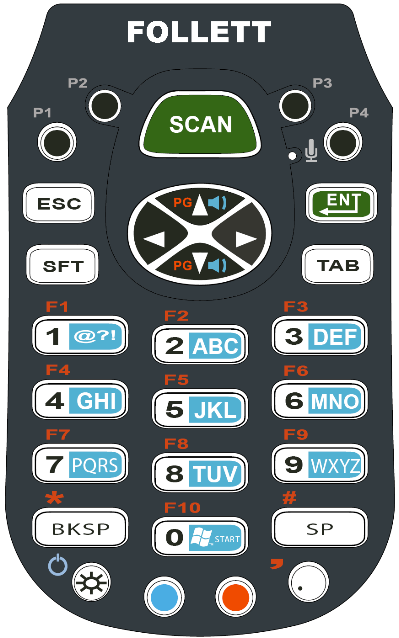
The keyboard overlays are color-coded to indicate the functions performed, or characters typed, when you press a color-coded key and the red or blue modifier key.
In addition to the standard number and letter keys, both keyboards contain four types of keys:
The four hardware application buttons are programmed to launch software applications from the Desktop.
Key |
Function |
|
P1 |
Launches Internet Explorer |
|
P2 |
Launches WordPad |
|
P3 |
Launches Scan Wedge. If it's already running, asks you if you want to close it. |
|
P4 |
Launches Follett Remote |
Function keys perform specific functions and usually display the name of the function they perform.
Name |
Key |
Function |
|
Backlight |
|
Toggles the keyboard backlight on and off. |
|
Backspace |
|
Moves the cursor back one space and deletes each time you press the key. |
|
Backtab |
|
Red plus TAB keys. Moves the cursor back to the previous tab stop or field (on a form or application window). |
|
Escape |
|
Cancels an action. |
|
Enter |
|
Functions as an Enter key. |
|
Power |
|
Blue plus Backlight keys |
|
Scan |
|
Activates the scanning LED to scan a barcode or take an image. |
|
Shift |
|
Provides shift functionality for application windows and functions as a Caps Lock key in Alpha mode. |
|
Space |
|
Moves the cursor one space forward. If you are typing text, it moves the text one space forward as well. |
|
Tab |
|
Moves the cursor to the next tab stop or field (on a form or application window). |

Located in the center of the keyboard for easy access with either hand, the navigation keys enable you to navigate the cursor through an application screen.
Key |
Description |
Function |
|
|
with
|
with
|
||
|
|
Move the cursor up one row or line. |
Volume up. |
Scroll page up. |
|
|
Move the cursor down one row or line. |
Volume down. |
Scroll page down. |
|
|
Move the cursor one character to the right. |
N/A |
Space |
|
|
Move the cursor one character to the left. |
N/A |
Backspace |
Blue Key combinations
Press the Blue key once in combination with the next key.
Key Combination |
Function |
|
Blue + Backlight |
Suspend/Resume |
|
Blue + Up Arrow |
Volume up |
|
Blue + Down Arrow |
Volume down |
Red Key combinations
Press the Red key once in combination with the next key.
Key Combination |
Function/Special Character |
|
Red + Left Arrow |
Backspace |
|
Red + Right Arrow |
Space |
|
Red + Up Arrow |
Page up |
|
Red + Down Arrow |
Page down |
|
Red + ESC (hold) |
Soft reset (warm boot) |
|
Red + TAB (hold) |
Hard reset (cold boot) |
|
Red + 1 |
F1 |
|
Red + 2 |
F2 |
|
Red + 3 |
F3 |
|
Red + 4 |
F4 |
|
Red + 5 |
F5 |
|
Red + 6 |
F6 |
|
Red + 7 |
F7 |
|
Red + 8 |
F8 |
|
Red + 9 |
F9 |
|
Red + BKSP |
* |
|
Red + 0 |
F10 |
|
Red + SP |
# |
The keypad defaults to Numeric mode and switches between Alpha and Numeric modes easily.
To switch modes, press the Blue modifier key  as follows:


Alpha indicators
Each number key has a blue section with white characters that indicates which letter or symbol is typed when you press that key in Alpha mode.
Please note that when typing in Alpha mode, you must use the same multi-press method you would use when typing letters on a phone keypad. Each keypress types the next letter in the sequence as displayed by the Alpha indicator.
Note: You can still use the Blue modifier key for regular Blue Key combinations in Alpha mode.
Just press and hold Blue modifier key with the next key in the combination.
Shift functionality in Alpha mode
When you switch the keyboard to Alpha mode, letters type in lowercase by default.
To capitalize only the next letter pressed, single-press the SFT key.
To turn CAPS LOCK on and off, double-press the SFT key.
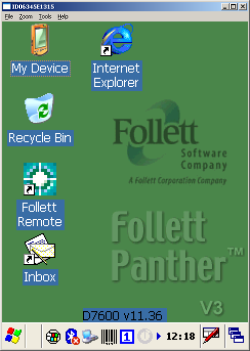
Located at the bottom of the Panther's screen, the command bar includes application menus, buttons, and provides access to the Input Panel (on-screen keyboard).

|
Opens the Windows® Start menu. |

|
Indicates that the USB communication cable is connected. |

|
Battery status. This icon means that the battery is low. |

|
Tap to open the Bluetooth Manager. |

|
Indicates that barcode scanning is enabled. |

|
Indicates whether the keyboard is in numeric or alpha mode, temporarily or permanently. |

|
Radio status. Tap to open the network manager. |

|
802.11b/g radio signal strength. |

|
Displays the current time. Double-tap to change the time/date. |

|
Tap to open the soft input panel (onscreen keyboard). |

|
Tap to return to the Desktop or toggle between the open applications. |
Follett Panthers offer the following communication options: wireless radios, Microsoft® ActiveSync® with a communication cable, and infrared.
Follett Panthers have an 802.11b/g and a Bluetooth® radio.
Once you configure the Panther for your network, you can communicate wirelessly:
Establishing the Panther on a wireless network depends heavily on your network infrastructure.
You will need specific information from your network administrator.
Before you can communicate with your wireless network, you'll need to do the following:
The mechanical connector on the bottom panel allows you to connect the Panther to a host workstation through a USB (1.1 or higher) connection using ActiveSync communication.
The IrDA port enables the Panther to transmit data via pulses of infrared light to and from other IrDA-compliant devices, such as printers, workstations, and even other Panthers.
To configure the Panther to communicate with your workstation, please follow the "Connect to ActiveSync using infrared" instructions in the ActiveSync Help on your workstation.
The Panther contains an integral Network manager for the on-board 802.11b/g radio.
The Panther v2.0 supports the following protocols:
For the above protocols that support EAP authentication, the Panther supports the following methods:
To communicate with your wireless network, you'll need to turn the power on to the radio and configure your WLAN settings on the Panther. You'll need to obtain the information from your network administrator.
Important: Any cold boot of the Panther deletes the WLAN settings. You may want to store this information in a secure place.
 in the taskbar.
Select | To connect with |
None | No authentication or encryption. |
WEP | WEP encryption |
IEEE 802.1X (WEP) | WEP encryption and EAP authentication. |
WPA-Personal (PSK) | WPA encryption and PSK authentication. |
WPA-Enterprise (EAP) | WPA encryption and EAP authentication. |
The fields and options required by the association mode, encryption, and EAP methods appear in the Network Window after each is selected.
All server-assigned IP addresses use Dynamic Host Configuration Protocol (DHCP).
On the Config tab, select the network in the list and tap Activate. The Panther attempts to connect to the network according to the parameters you entered above.
Please note that the Panther will not attempt to connect until you tap Activate. The Config tab stores all the configurations you have created in the list but activates only one configuration at a time.
[x] appears next to the activated configuration.
To switch connections, simply select it on the Config tab and tap Activate.
The Status tab appears displaying the connection status.
The radio status icon in the taskbar changes to indicate the status:
|
Color |
Meaning |
Status tab status |
|---|---|---|
|
Gray
|
The radio is disabled, idle, not connecting |
NO RADIO |
|
Yellow
|
The connection is • Associating (icon stops spinning) |
ASSOCIATING |
|
Red
|
Authentication failed and the connection failed as a result. |
ASSOCIATED |
|
Green
|
The connection is authenticated with a valid DHCP address. |
COMPLETE |
To configure the IP address
To allow your workstation and the Panther to communicate through a cable, you'll need the correct cable and software.
You'll need the following hardware
You'll need the following software
You must set up ActiveSync or Windows Mobility Center on your workstation before you connect your Panther for the first time.
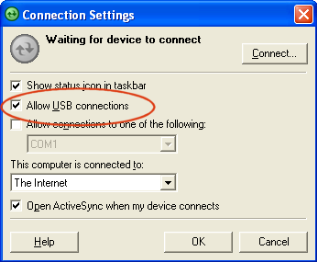
Once you've installed ActiveSync on your workstation, you'll need to configure it:
|
|
Once you've installed Windows Mobility Center on the workstation, you'll need to configure it:
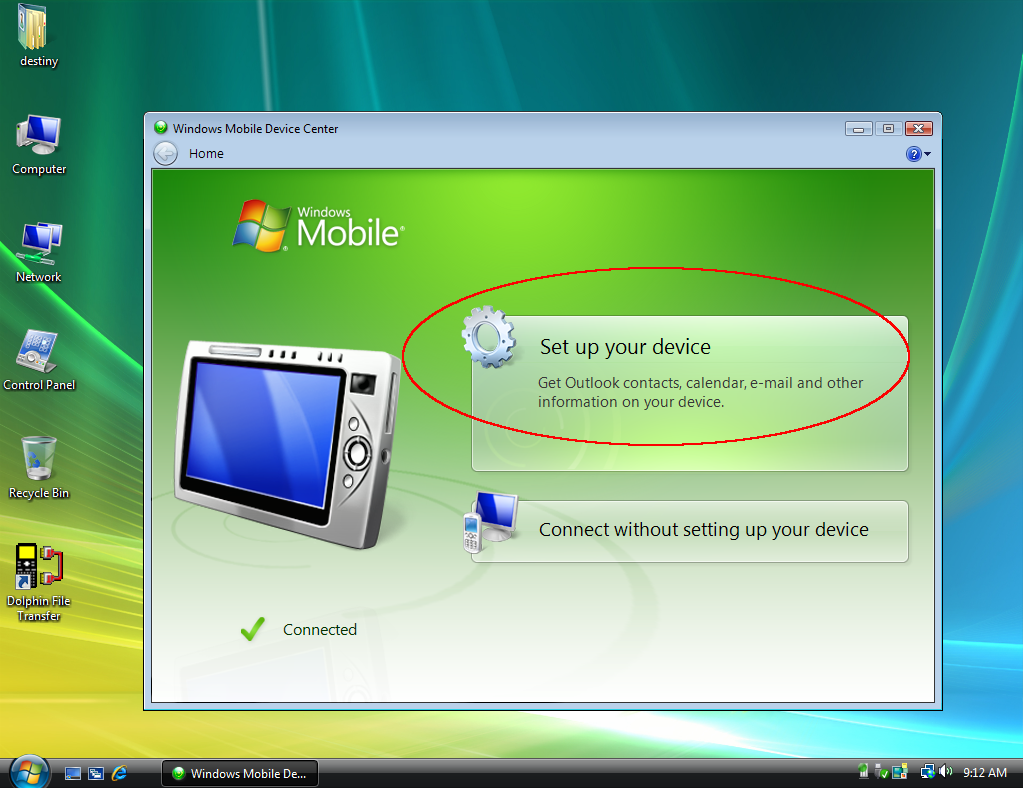
Select Start > All Programs > Windows Mobile Device Center.
On the dialog that appears, choose Set up your device.
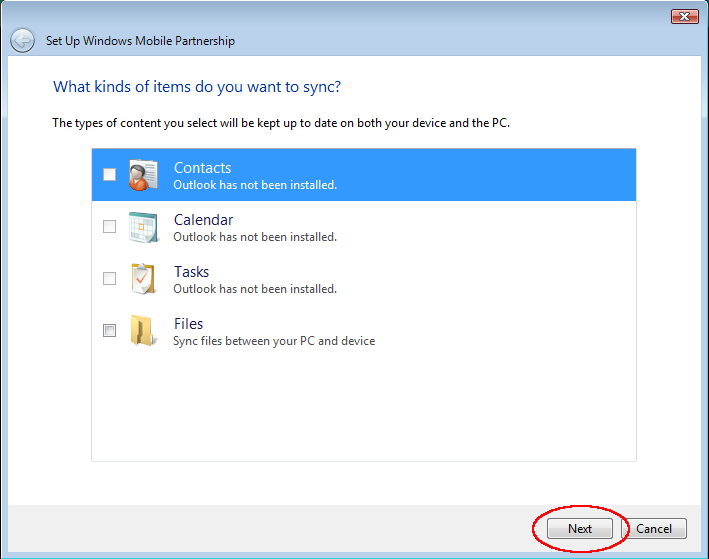
On the next dialog, "What kind of items do you want to sync?",
leave all boxes unselected and click Next.
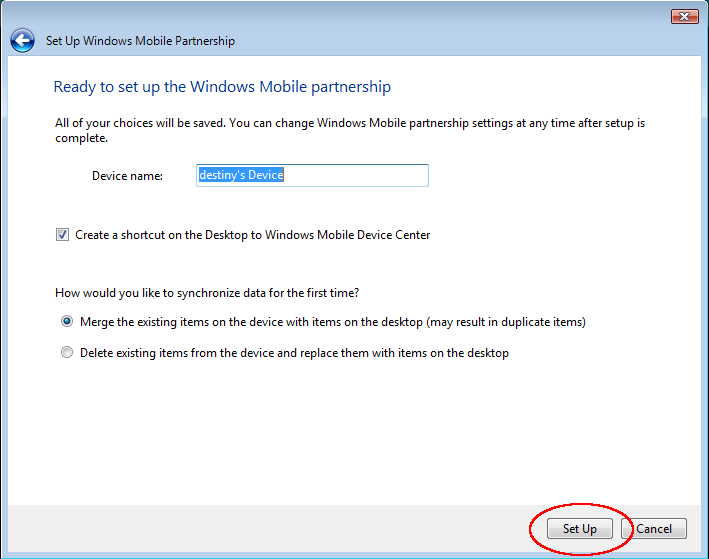
On the next dialog, "Ready to set up the Windows Mobile Partnership", enter a descriptive name of your choice next to Device name.
For the synchronize data question, leave it at "Merge the existing items …". It does not affect the way information for Destiny is transferred.
Then click Set Up.
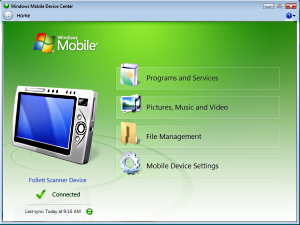
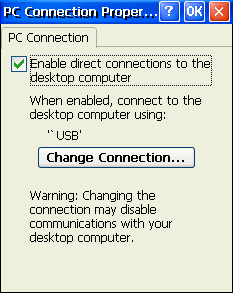
As shipped, the Panther defaults to USB communication with your workstation.
To verify or change the default setting
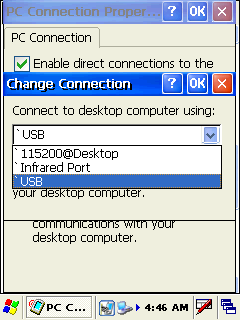
(Start) > Settings > Control Panel > PC Connection.
|
Connection Options |
Select an option to … |
|
115200@Desktop |
Establish an RS-232 connection. |
|
Infrared Port |
Establish an ActiveSync connection via the IrDA Port. |
|
USB |
Establish a USB connection |
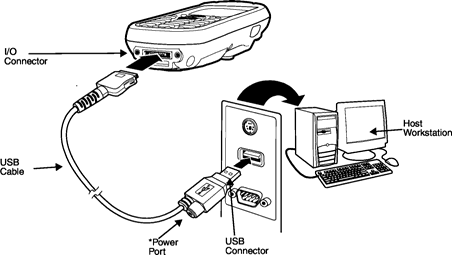
Connect the USB cable to the I/O connector on the Panther and to a USB port on the workstation.
This is a communication-only cable unless you plug the power cable into the power port.
Connecting the power cable
The Power Port on the back end of the USB connector fits the power cable that comes with each Follett Panther. To charge the device while communicating, connect the power cable to the Power Port.
After setting up both the workstation and the Panther, an ActiveSync connection should be automatic.
When you connect the Panther to a communication peripheral, such as the Communication cable, the Panther automatically opens ActiveSync to establish a connection.
When you've connected the Panther to the workstation, ActiveSync should open automatically. If not, open ActiveSync on the workstation by double-clicking the ActiveSync icon  in the system tray.
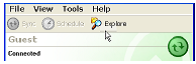
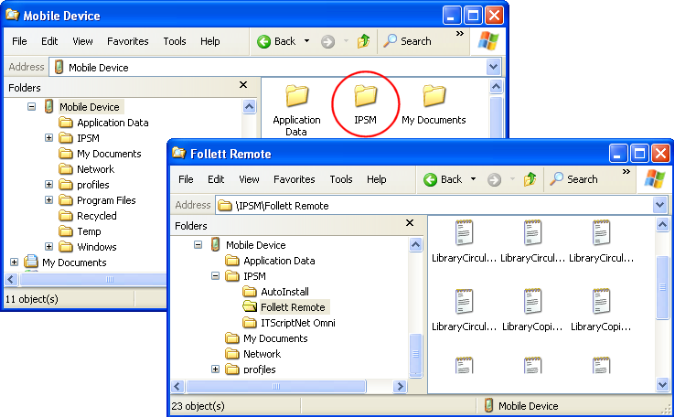
Once you've moved your Follett Remote files to your workstation, you can upload them to your application. In Destiny, once you regain your wireless connection, you can upload the files through the browser.
You can upload Follett Remote data files anywhere that accepts files from a PHD:
Cataloging
Edit | Update Copies via PHD
Edit | Remove Categories via PHD
Edit | Delete Copies via PHD
Circulation Desk
Circulation | Remote Circulation
Inventory
Inventory | Remote Inventory
Patron Maintenance
Edit | Update Patrons via PHD
Edit | Delete Patrons via PHD
Reports
Bibliography Report | Select by: Titles via PHD
Title List | Select by: Titles via PHD
Patron Barcode List | Select by: Patrons via PHD
Patron Cards | Select by: Patrons via PHD
Patron Name List | Select by: Patrons via PHD
To upload a file
To process Follett Remote circulation transactions
You can upload Follett Remote data files from several pages in Destiny.
If you've transferred the Follett Remote files to your workstation:
If you're uploading them wirelessly:
Once you see the message, "Your uploaded file has been sent to the Job Manager", you can continue with other tasks.
Once you've uploaded your files to your application and no longer need them, make sure to delete them from both your workstation and your Panther.
When your application has finished processing the file, make sure to review the exception report or job summary.

 +
+ 


 +
+